Google Docs Project Tracker Tutorial: Manage Tasks in 5 Minutes
Choosing the right email marketing platform is a foundational decision that impacts your entire digital strategy, from lead nurturing to customer retention. The competition between legacy giants and feature-rich newcomers is fierce. When businesses are forced to choose, the battle often comes down to Mailchimp vs Brevo.
If you’re a small team or a solo entrepreneur, you know the frustration of juggling tasks across multiple tools. You might track leads in a spreadsheet, keep meeting notes in Google Docs, and manage tasks in another app entirely. This is slow, inefficient, and costly.
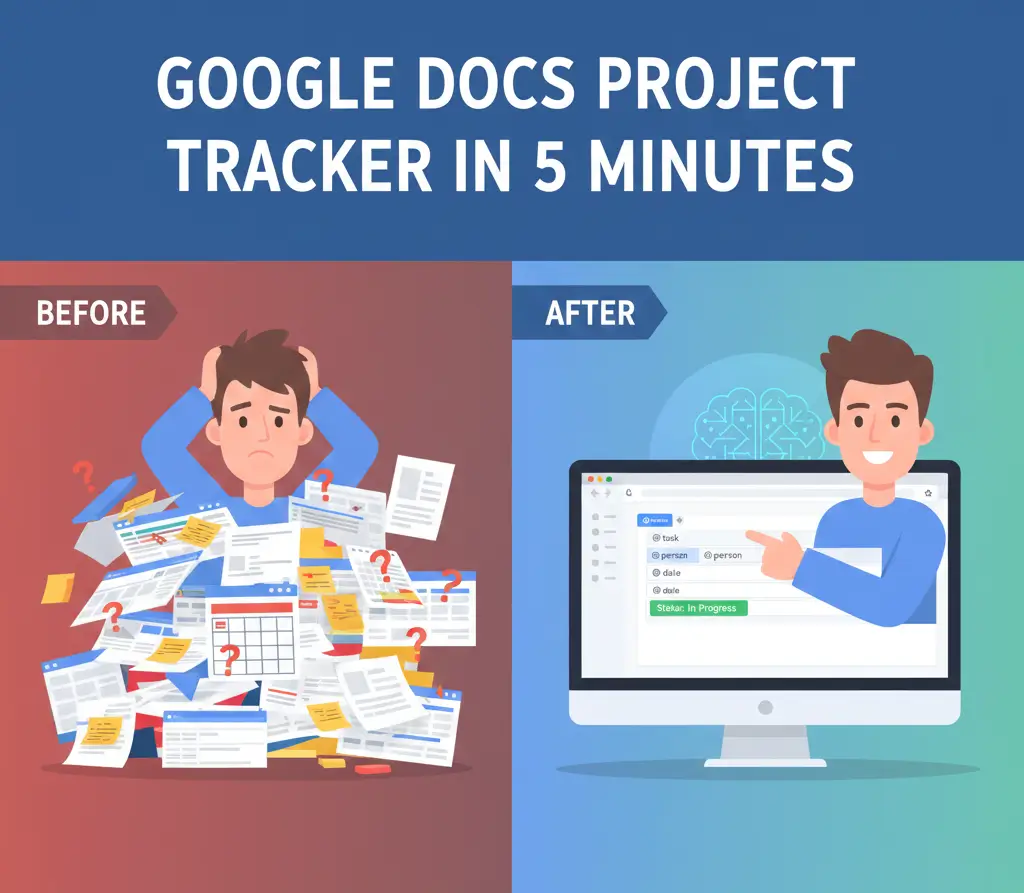
Fortunately, Google has integrated powerful Building Blocks and Smart Chips directly into Google Docs, transforming it from a simple word processor into a simple, collaborative project management hub. If you need a fast and free Google Docs Project Tracker solution, this tutorial is for you.
Here is a step-by-step guide on how to build a fully functional, collaborative project and task manager in under five minutes.
Why Use Google Docs for Project Management?
Before diving into the “how-to,” it is worth noting the simplicity. For a complex or multi-department project, you might need a tool like ClickUp, but for daily tracking, the Google Docs Project Tracker works perfectly.
- Zero Cost: You already have access to it.
- Zero Learning Curve: Everyone knows how to use Google Docs.
- Collaboration: Real-time sharing with the ability to assign tasks to collaborators instantly. For high-level automation ideas, check out our guide on AI Email Marketing Automation.
🛠️ Step-by-Step: Your Google Docs Project Tracker Tutorial
This process uses one powerful shortcut: the @ key.
Step 1: Create Your Project Document
Start a new Google Document. Give it a clear name (e.g., “Q4 Marketing Project Tracker”). The first thing you need is a clean structure. For a deeper understanding of the features available, you can read the official Google Workspace documentation on Smart Chips.
Step 2: Insert the Project Planning Block
Instead of manually typing columns, use the built-in template:
- Type the
@symbol anywhere in the document. - Start typing “Project Planning” or scroll down until you see the Building Blocks section.
- Click Project Planning.
This will instantly populate your document with pre-formatted sections for Goals, Status, Deliverables, Team, and Resources. This is the foundation of your Google Docs Project Tracker.
Step 3: Assign Tasks Using Smart Chips
This is the most crucial part for tracking team work. You can assign tasks directly inside the document.
- Place your cursor where you want the task to appear (e.g., under the Deliverables section).
- Type
@task. A small task block will appear. - Type the task name (e.g., “Finish Mailchimp vs Brevo Review”).
- Assignee: Click the person icon or type
@followed by a team member’s name to assign the task. - Due Date: Click the calendar icon to set a deadline.
This action automatically sends a notification to the assignee and adds the task to their personal Google Tasks list, ensuring they never miss it.
Step 4: Track Status with the Project Status Chip
Tracking progress should be simple and visually clear.
- Find the Status section (already created in Step 2).
- Type
@and select the Project Status Smart Chip. - Click the chip to change the status (options include Not Started, In Progress, or Blocked).
Using the color-coded chips makes it easy to open the document and immediately see the health of the project at a glance. Remember, simple organizational hacks often lead to massive productivity gains, as discussed by experts in leading productivity blogs like Forbes.
Conclusion: Simplicity is Productivity
You don’t need to overcomplicate your workflow. By leveraging the power of @task and @status Smart Chips, you can create a simple, effective, and collaborative Google Docs Project Tracker that saves you time and keeps your entire team aligned.

Bruno Canhos Vicentin is a technology specialist and AI enthusiast dedicated to uncovering digital solutions that optimize workflows. With a focus on hands-on testing and unbiased reviews, he helps professionals navigate the rapid evolution of Artificial Intelligence through practical guides and in-depth analysis.